Product update
See what Lucie can do
Find something to try in Ideas, connect your services more easily and choose how Lucie talks to you.
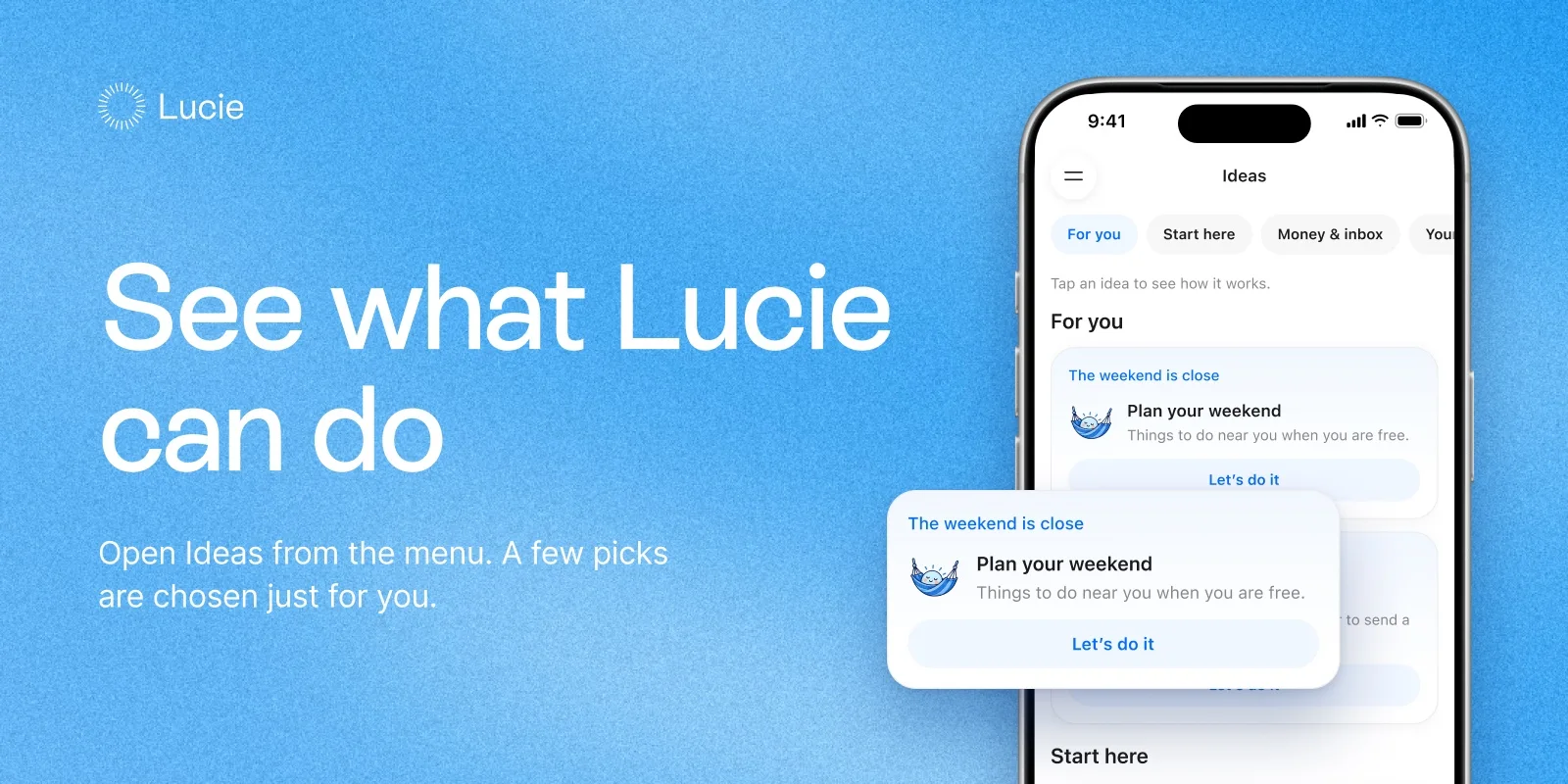
If you’re wondering what to ask Lucie, start with Ideas.
Ideas
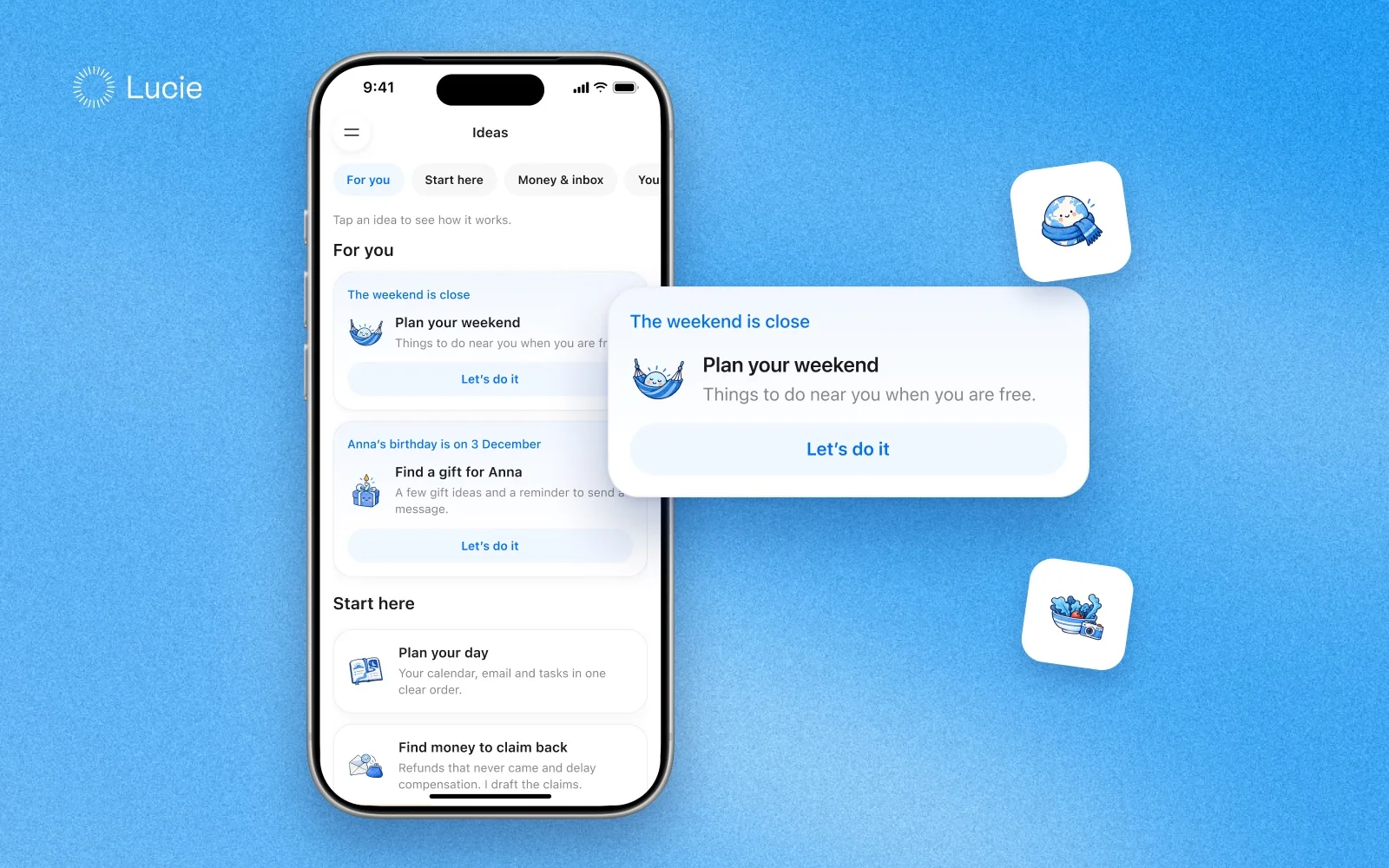
Open Ideas from the menu to explore what Lucie can help with. At the top, you’ll see suggestions for you, like planning your weekend or finding a birthday gift.
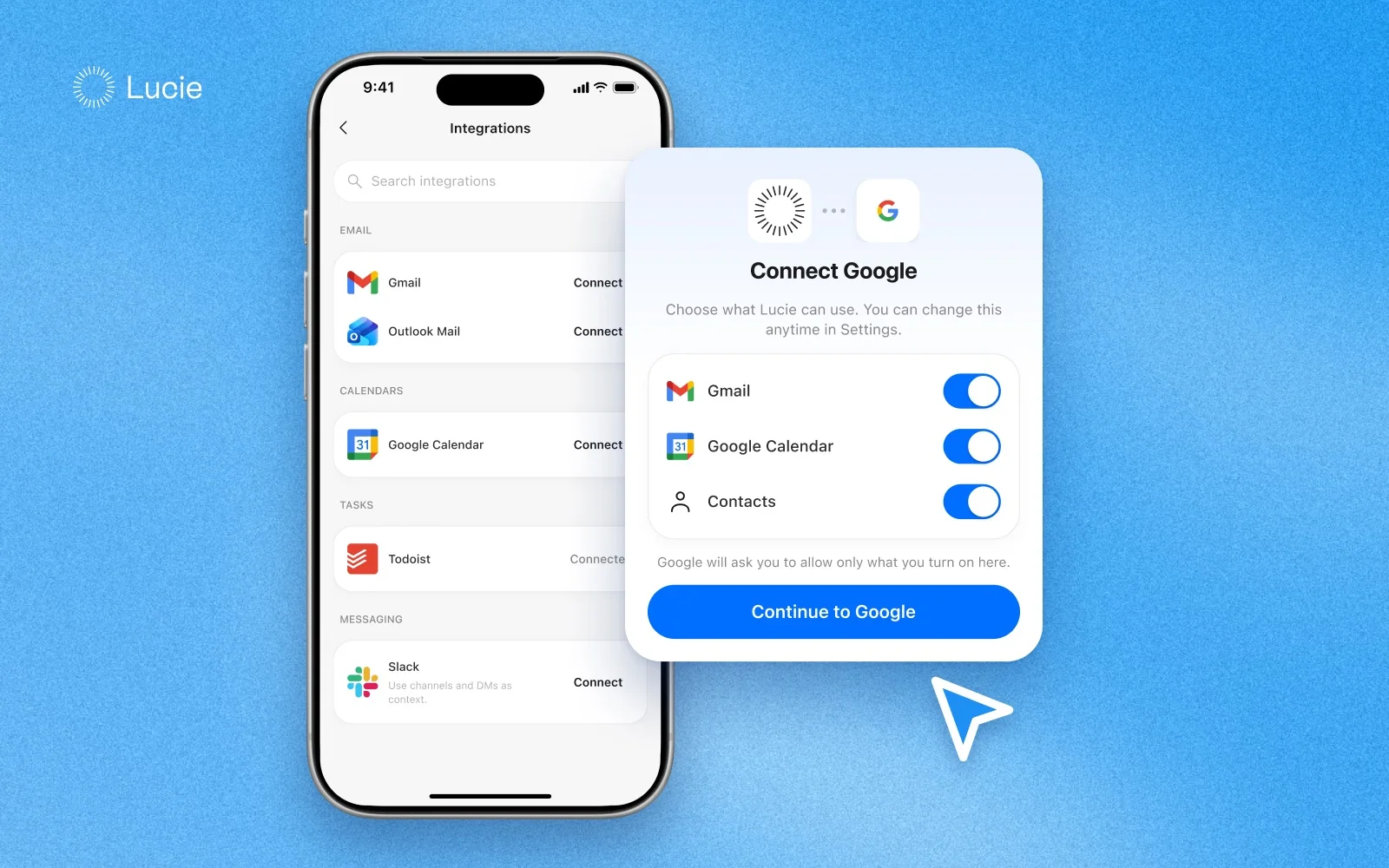
Connect your services in one go
Sign in to Google or Microsoft once, then choose which services to connect. For iCloud Mail, Calendar and Contacts, use one app specific password. You can change your choices in Settings.
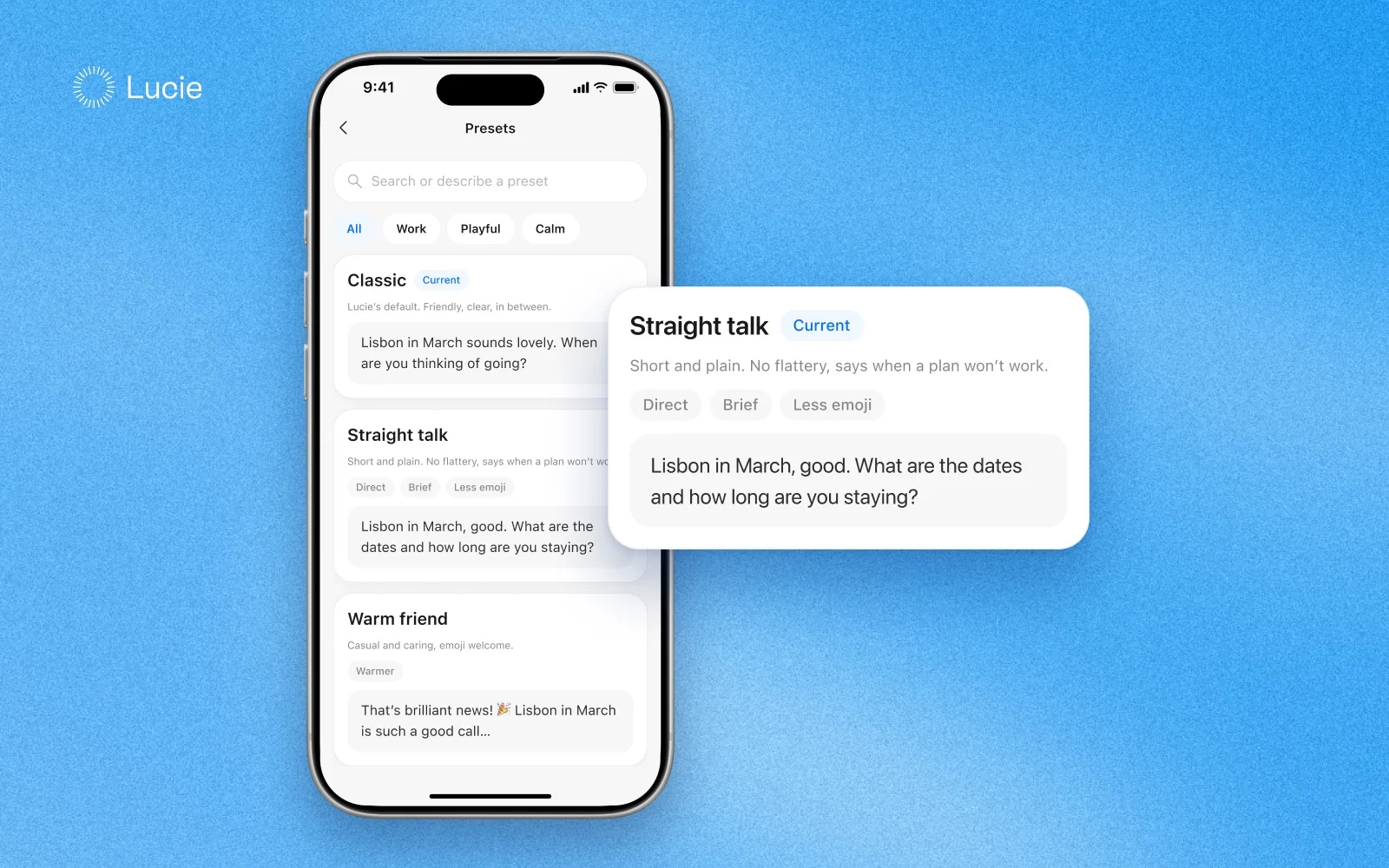
Choose how Lucie talks to you
Open Personalization in Settings to choose a preset such as Straight talk, Warm friend or Coach. Preview a sample reply and adjust the style whenever you like.
Import your chat history
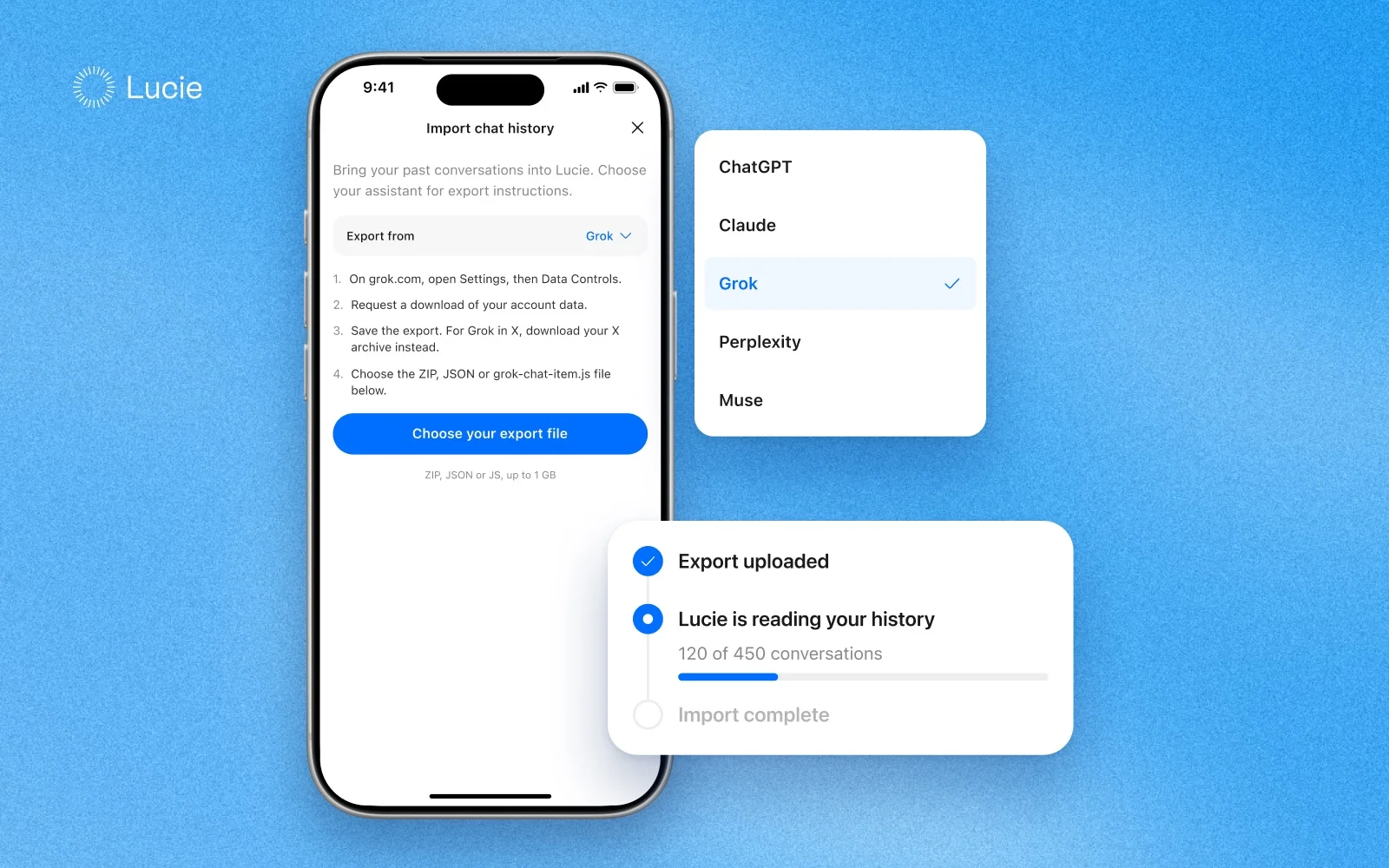
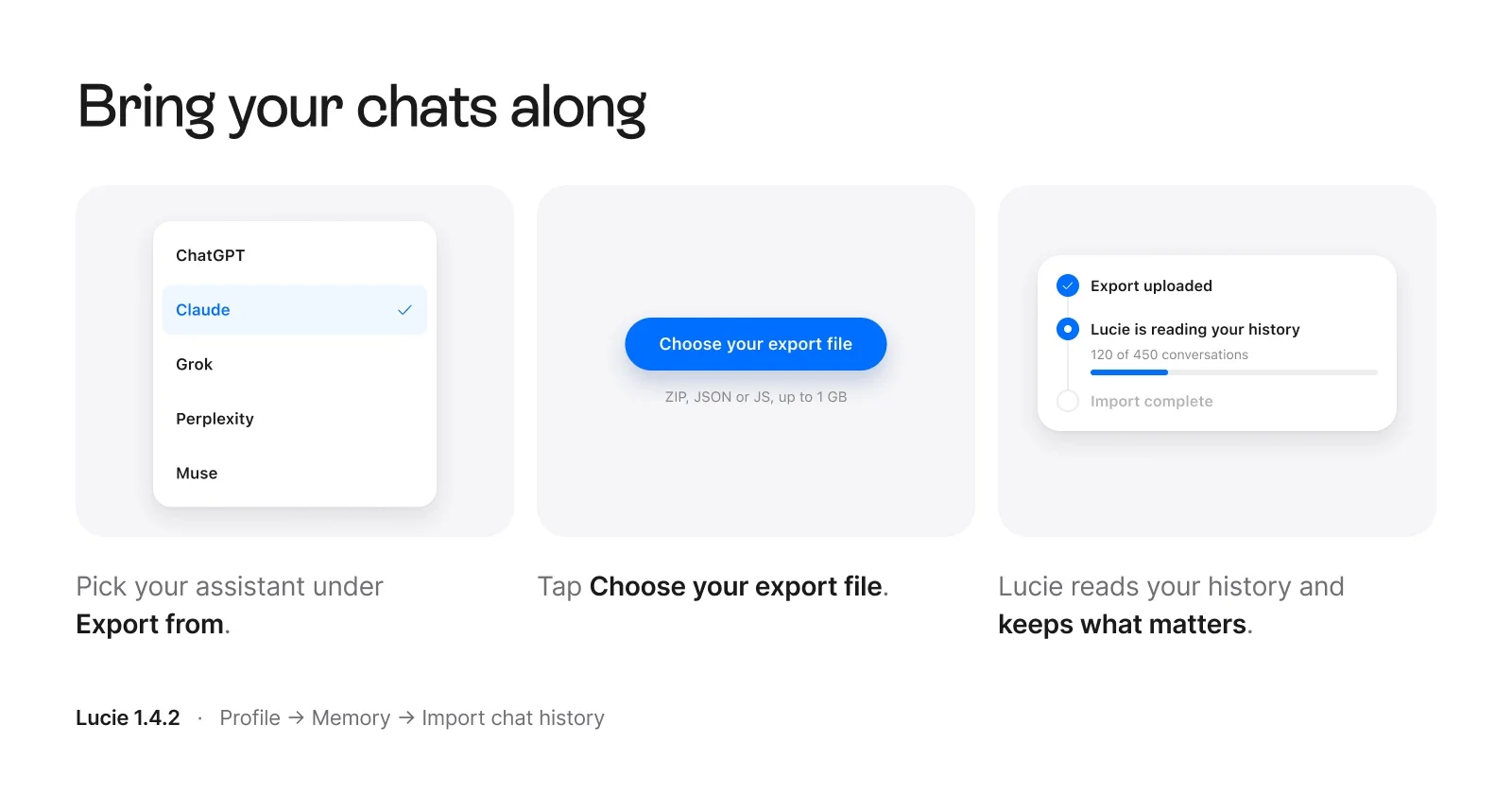
You can now import conversations from Claude, Grok, Perplexity and Muse as well as ChatGPT. Lucie uses the import to pick up details and commitments you’ve already shared.
Smoother dictation
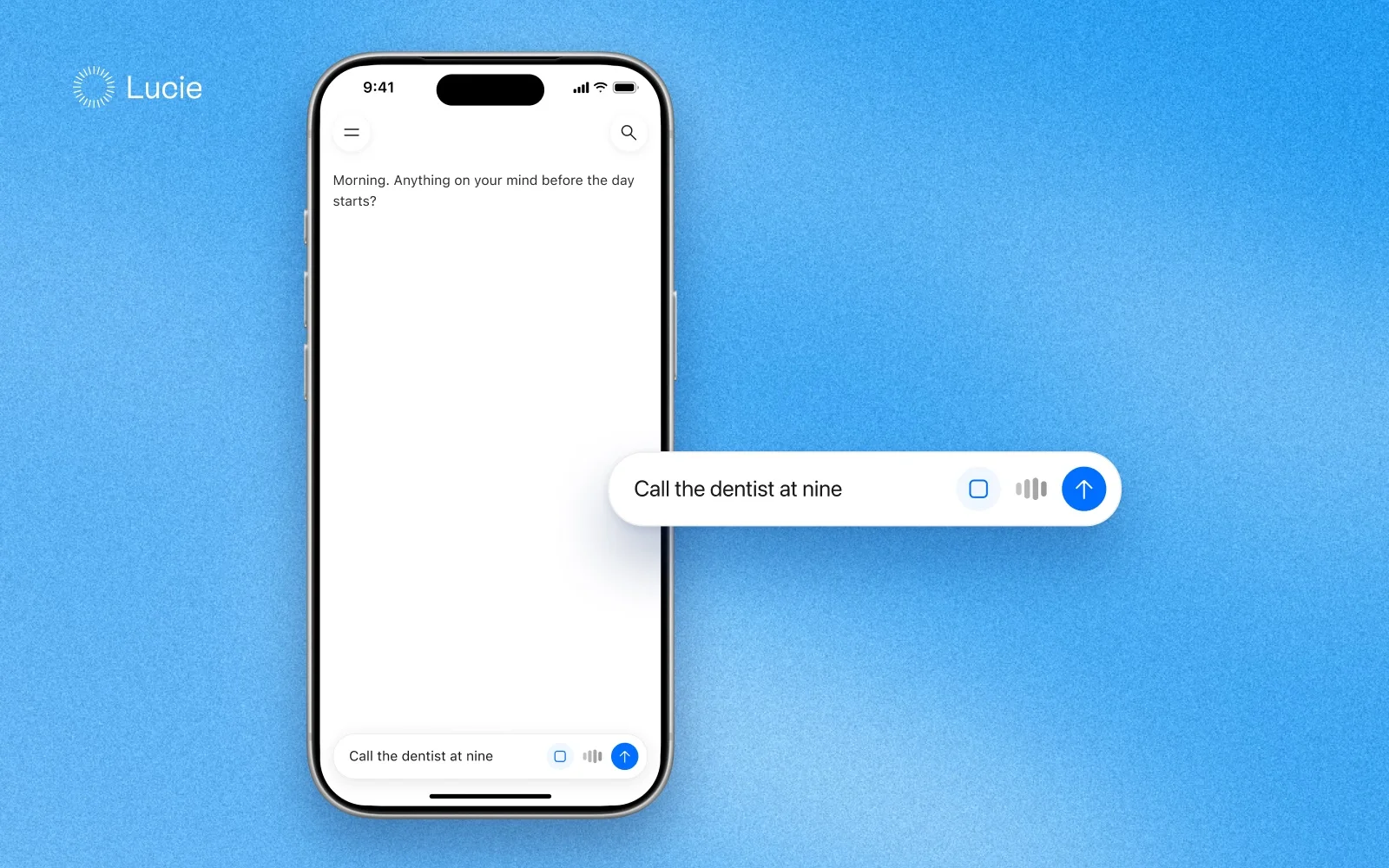
Your words appear as you speak. Send the message when you’re ready.
Have feedback? Send us a note from inside the app.